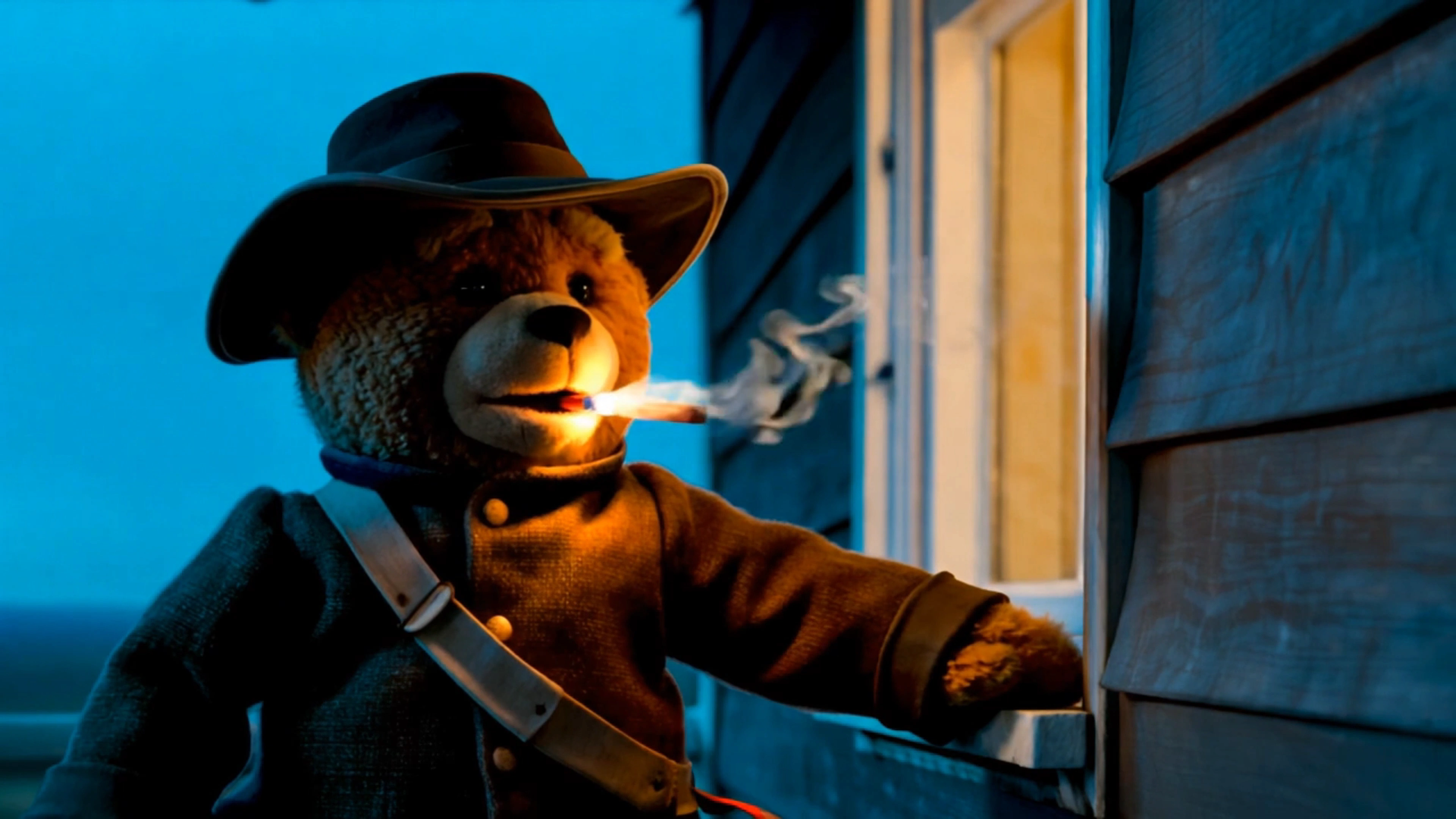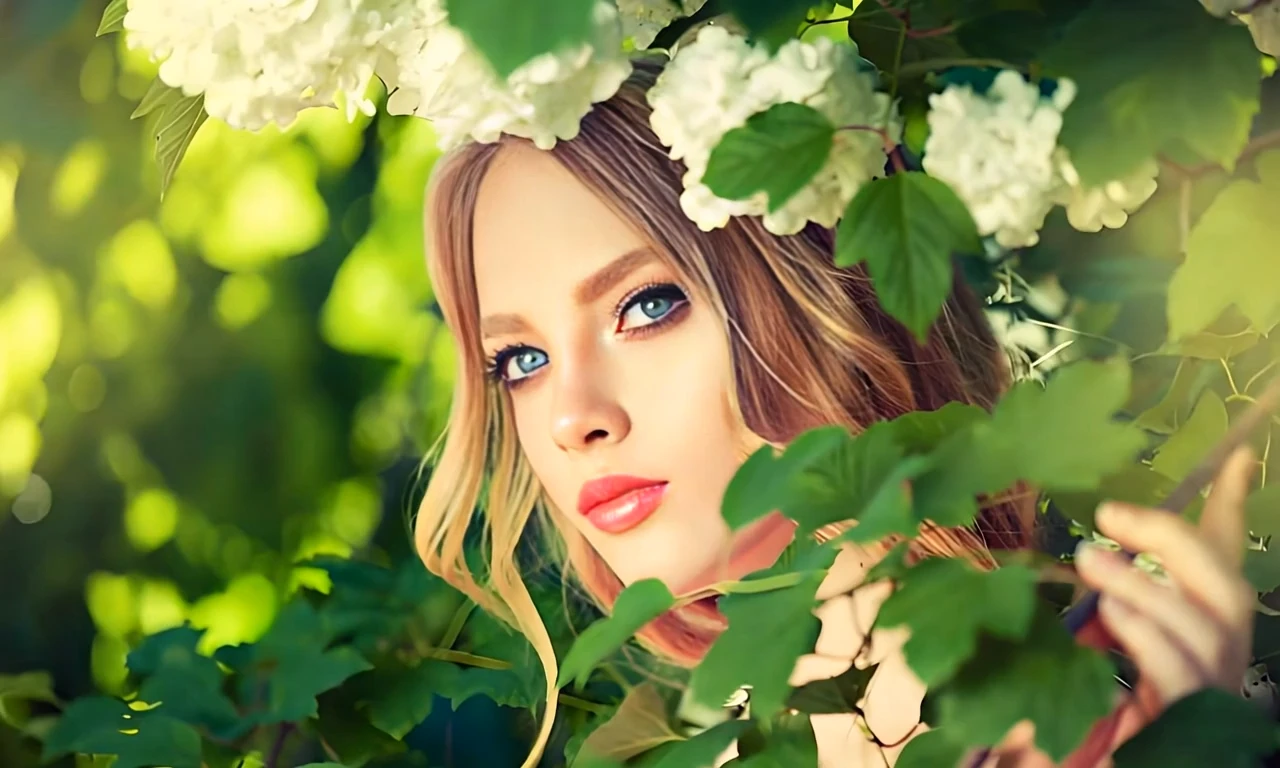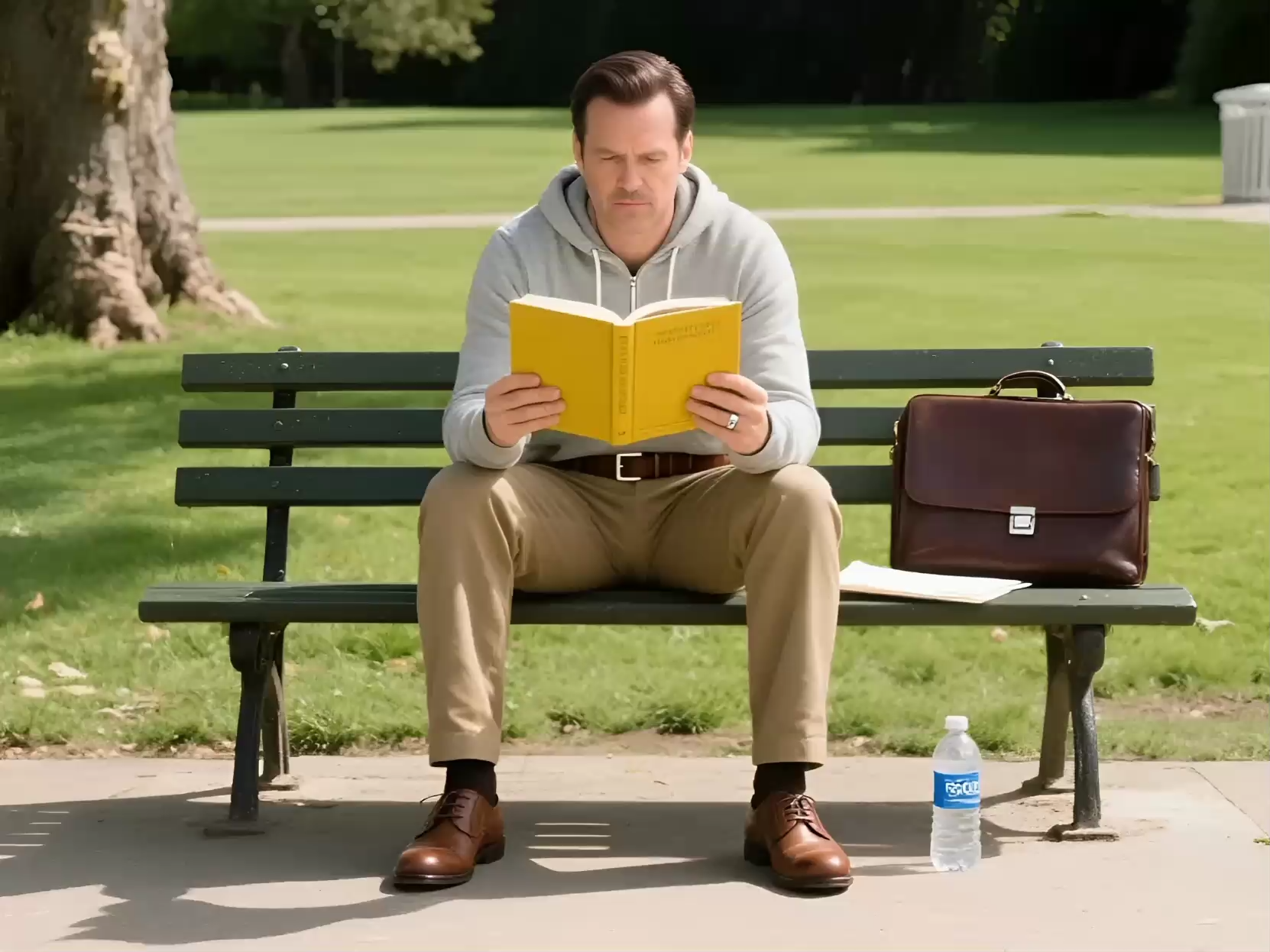
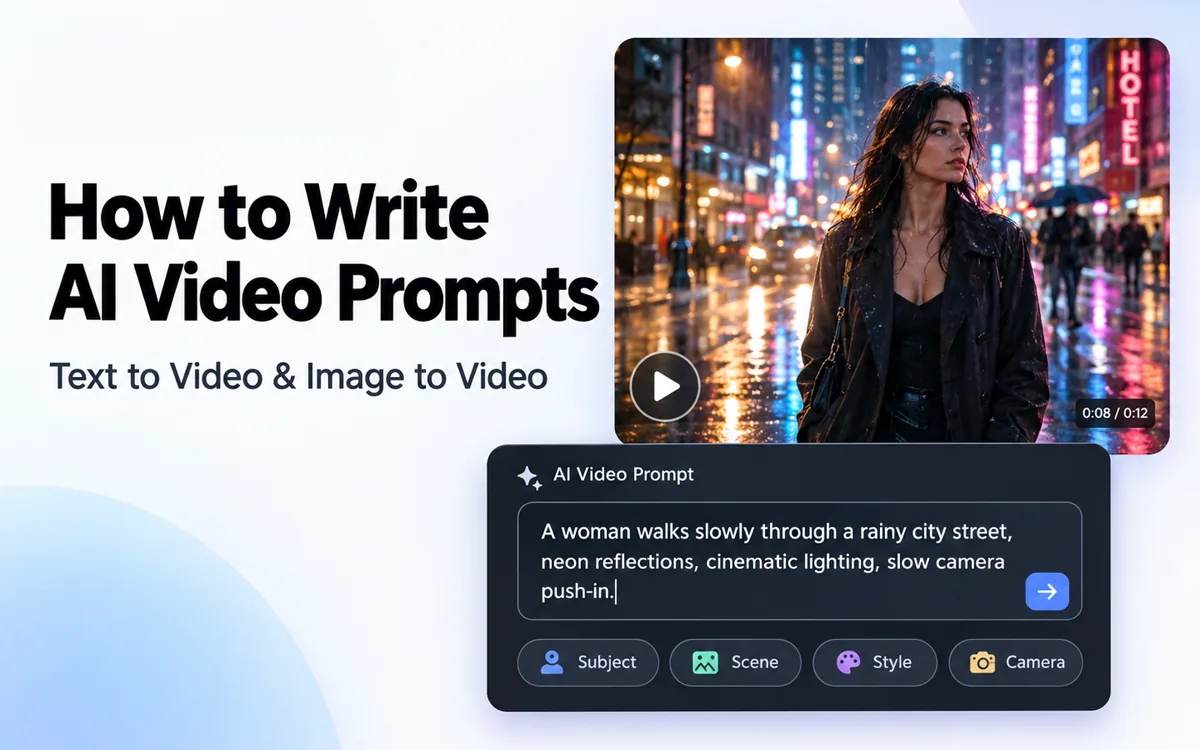
How to Write AI Video Prompts for Text to Video and Image to Video
Every AI video tool asks you for a prompt. But what belongs in an AI video prompt depends on how you started — from a blank page, or from a photo you already have.
This guide covers both. It breaks a prompt into four parts, shows weak and strong versions side by side, explains what changes when you are working from an image instead of from nothing, and walks through every control on the tool page so you know which decisions belong in the text box and which belong to a click.
Two Ways to Start an AI Video
Text to Video — you have an idea and nothing else. The prompt has to carry the subject, the setting, the look, and the camera, because the model has no other input.
Image to Video — you have a picture. The subject and the scene are already decided by the image. The prompt now describes what changes: what moves, how the camera behaves, and what mood to push it toward.
That difference is the single most useful thing to understand, because it changes what a good prompt looks like:
| Text to Video | Image to Video | |
|---|---|---|
| What the image gives you | Nothing | Subject, scene, composition |
| What the prompt should do | Describe everything | Describe the change |
| Most common mistake | Too short — leaves everything to guesswork | Too long — re-describes what is already in the frame |
A Simple Four-Part Framework
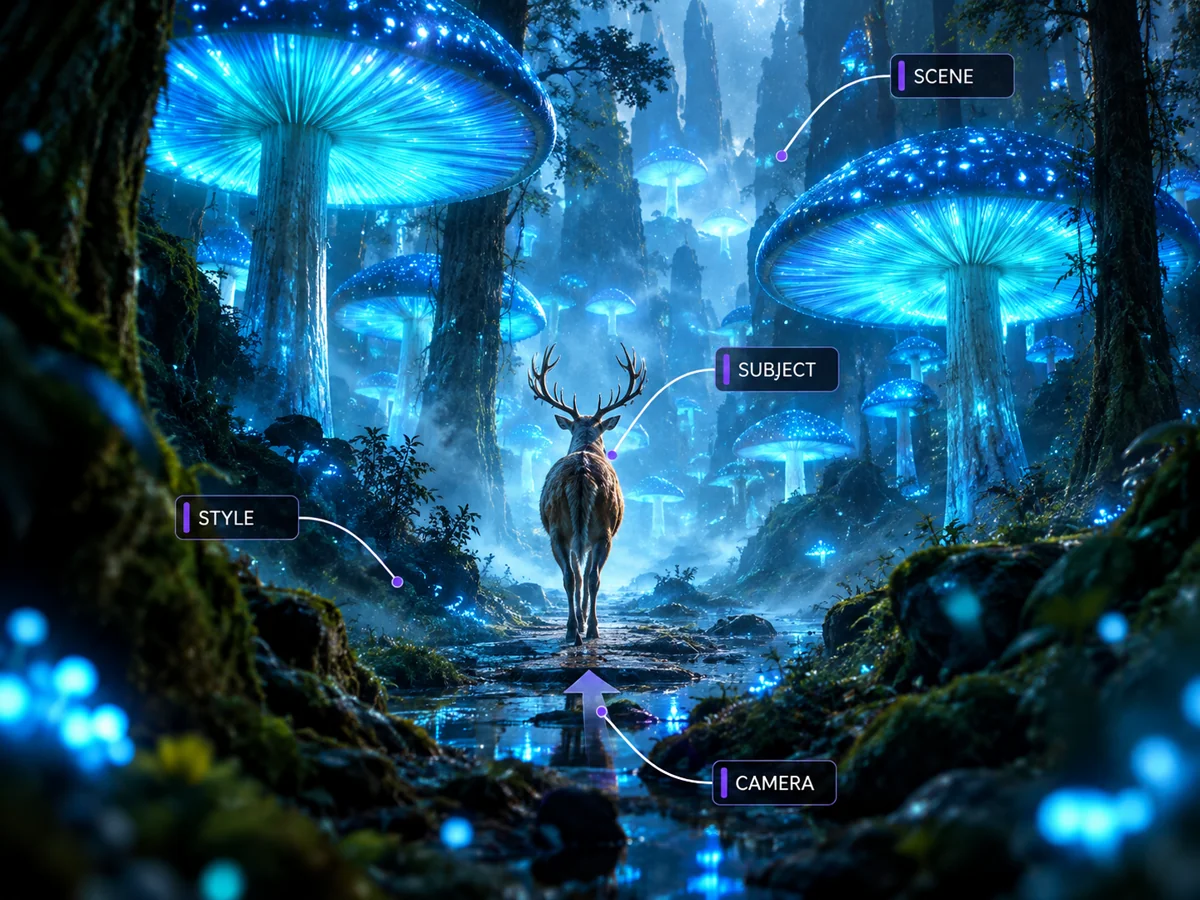
Subject + Scene + Style + Camera
Subject — who or what, and what they are doing. Not just "a woman", but "a woman in a red coat walking through a station, looking back over her shoulder". Subject, action, and emotion in one line.
Scene — where this happens, and what the air feels like. Time of day, weather, surroundings, atmosphere. "A rainy evening platform, warm lights reflecting on the wet floor."
Style — the visual treatment. Photorealistic, cinematic, anime, watercolour, 3D render, stop-motion. Pick one and commit — combining several very different styles tends to make the result less consistent.
Camera — where the camera is and how it moves. "Medium shot on her hands, the camera easing in slowly" or "wide aerial view, the camera drifting right across the valley". This is the part almost everyone forgets, and it is the part that makes a result feel deliberate rather than random.
When you can, tie the movement to the subject. "The camera panning up to follow the kite" tells the model more than "panning shot" on its own — it knows what to track, and why.
You can add a fifth element when you need it: lighting and colour ("golden hour", "cool blue neon", "high contrast"). Optional, but the fastest way to change the mood of a clip.
Weak Prompt vs Strong Prompt
The three ideas on the Text to Video page — Magic Forest, Future City, and Paradise Island — are starting points, not finished prompts. Here is what happens when you expand one. The weak version below is what most people type next — the theme turned into a plain sentence.
| Version | Prompt | What the model gets |
|---|---|---|
| Weak | A deer walks through a magic forest | A subject, an action, and a setting — the look, the light, and the camera are left to the model. |
| Strong | A deer steps slowly through a forest of giant glowing mushrooms, mist drifting between the trees, bioluminescent blue light, cinematic fantasy style, the camera pushing in slowly behind it. | The same subject, action, and setting — with the look, the light, and the camera all decided. |
Both rows describe the same shot — a deer, walking, in a forest. The difference is not length; it is how many decisions are still open. The model has to fill in the rest for you, so what comes back may be more generic than the idea you had in mind.
The other two ideas, written the same way:
Future City → A courier rides a hoverbike through a night city of glass towers, headlights reflecting across wet asphalt, neon signs glowing between the buildings, photorealistic, the camera tracking just behind the bike.
Paradise Island → A small wooden boat drifts slowly across a turquoise lagoon, warm sunlight shimmering on the clear water, palm shadows moving across the white sand, photorealistic, the camera slowly descending toward the boat.
Text to Video Prompts: Start From Nothing
When the box is empty, all four parts have to be in the text. The order matters less than the completeness — most people are missing the camera, not the subject. This is the Text to Video Generator path, running on Veo 3.1.
A prompt that lands looks like this:
A street food vendor flips noodles in a wok, flames flaring up, steam and smoke drifting through warm lantern light, busy night market behind him, cinematic realism, the camera pushing in slowly toward the wok.
Subject and action → "a street food vendor flips noodles in a wok". Scene and atmosphere → "flames, steam, warm lantern light, night market". Style → "cinematic realism". Camera → "the camera pushing in slowly toward the wok". Four parts, one sentence.
One practical note: how much story you can fit depends on the Duration you selected. A shorter clip usually works better with one clear action, while a longer one can support more movement or two or three beats. Trying to fit several separate actions into a short clip can make the result feel rushed, or cause some of them to be dropped.
Image to Video Prompts: Describe the Change, Not the Picture
The framework does not change — subject, scene, style, and camera still apply. But two of the four are already sitting in your image, and words spent re-stating them are wasted. This is the Image to Video Generator path, running on Wan 2.6.
This is where most people waste their character budget. They upload a photo of a woman in a park, then write:
A woman in a blue dress standing in a sunny park with green trees
The model already knows all of that — it is looking at the image. You have spent a full sentence telling it nothing new.
The same upload, written as a change:
She turns slowly toward the camera and smiles, hair moving in a light breeze, camera holds steady, warm afternoon light.
Now every clause is doing work: an action, a small secondary motion, and a camera instruction.
Two rules for image to video prompts:
Describe motion, not appearance. "She walks forward" is useful. "She has brown hair" is not.
Keep it shorter than a text to video prompt. The image carries the scene. Two to three sentences is usually enough — one for the action, one for the camera, one for atmosphere if you want it.
One note on style: your image already sets the look, so you rarely need to name it again. The exception is when you want to hold that look against the model's own drift — then say it plainly: keep the illustration style consistent.
A second example. Upload a product photo of a watch on a table, and write:
The camera slowly orbits the watch, light sweeping across the metal case, dust particles drifting in the air, shallow depth of field.
The frame came from the photo; the prompt supplied only the movement.
What Belongs in the Prompt — and What Doesn't
An AI video prompt does not do everything. The controls beside the box handle the settings; the prompt handles the content. Mixing the two makes the text longer without changing the output.
| Write it in the prompt | Pick it from the controls |
|---|---|
| The subject, the action, and how the camera moves | Model |
| Style, lighting, and mood | Duration |
| Anything you want kept out of frame — in the Negative Prompt field | Resolution |
| Aspect Ratio | |
| Movement Amplitude | |
| Background Music |
The controls differ by page: the Negative Prompt and Background Music sit on Text to Video, and Movement Amplitude sits on Reference to Video and Start End to Video. Check what is actually beside your box rather than writing it blind.
That is the whole rule: do not describe the format in words. Writing "make it 9:16 vertical", "1080P", or "she barely moves" into the box does nothing a click would not do better — and the controls already show what you picked, so restating it only burns characters you could spend on the scene.
Using the Negative Prompt
On the Text to Video page, the Negative Prompt is the one field where plain keywords beat full sentences. It is for things you want kept out of the frame.
Useful entries:
blurry, low qualitytext, watermark, logoextra fingers, distorted facemultiple people— when the frame should stay on one subjectfast movement— when you want a calm, stable shot
Keep it short. A long negative list starts cancelling out things you actually wanted.
Prompt Phrases You Can Borrow
You do not need to invent vocabulary. These are useful phrases for guiding a model's camera, motion, lighting, and visual style. They map onto the framework above: the two camera groups fill Camera, motion covers the action when you start from an image, style fills Style, and lighting, colour, and mood fill the optional fifth.
Camera and shotwide shot · medium shot · close-up · extreme close-up · over-the-shoulder · aerial view · static shot
Camera movementslow push-in · pull back · pan left / right · tilt up · tracking shot · orbit around · handheld
Motion, for image to videoturns toward the camera · walks forward · hair moving in a light breeze · slow blink · camera holds steady · gentle zoom out
Lightinggolden hour · soft diffused light · low-key lighting · backlit · neon glow · candlelight · overcast daylight
Colourwarm tones · cool blue palette · pastel hues · high contrast · muted earthy tones · monochrome
Moodcalm · tense · playful · dreamy · melancholic · dramatic
Stylephotorealistic · cinematic · anime · watercolour · 3D render · stop-motion · documentary
AI Video Prompt Examples by Use Case
Vertical social clip, text to video — 9:16, 4–6 secondsA surfer drops into the barrel of a wave, a sheet of water spraying overhead, backlit by low golden sunlight, deep blue water, photorealistic, slow motion, the camera tracking alongside him.
One action, one shot. Vertical is chosen in the Aspect Ratio control, not in the text.
Portrait animation, image to video — 4–6 seconds
Upload a headshot, then: She looks up from her notes and smiles slightly, a soft blink, camera holds steady, natural window light.
Product ad, image to video — 16:9, 8–12 seconds
Upload a product still, then: A slow drip of water falls onto the product from above, ripples spreading outward, the camera tilting down to follow the drop, high-key studio light.
Scenery, text to video — 16:9, 12 secondsRolling green hills under drifting clouds, a single tree on the ridge, late afternoon sunlight sweeping across the grass, wide aerial view, the camera drifting slowly forward over the hills.
Educational or explainer, text to video — 16:9, 8–12 secondsAn animated diagram of a plant cell, labelled parts gently fading in one by one, clean white background, flat illustration style, with a very subtle camera zoom.
Five Common AI Video Prompt Mistakes
- Writing a topic instead of a shot. "Sunset beach" names a subject and stops there — the light, the framing, and the movement are all still undecided. It also applies to longer prompts: a two-line scene stays a topic if none of the four parts actually says anything.
- Re-describing the photo in an image to video prompt. The model can see the image. Spend the words on motion instead.
- Packing in more action than the duration can hold. Several separate actions in one short clip tend to come out rushed, or get dropped. Match the number of beats to the Duration setting.
- Using the prompt to set formats. Duration, Resolution, Aspect Ratio, and Movement Amplitude have their own controls.
- Mixing two visual styles. "Photorealistic anime watercolour" produces mush. Pick one.
Start Writing
The four-part framework gives you a simple starting point for writing AI video prompts: subject, scene, style, camera. When you start from text, all four have to be in the box. When you start from an image, the picture already covers two of them — spend the prompt on what moves.
Open one of the generators below and try it.
- Text to Video Generator — start from a blank prompt and let the four-part framework carry the scene.
- Image to Video Generator — upload a photo and describe the change instead of the picture.
- Reference to Video — feed in reference images and use Movement Amplitude to control how much the subject moves.
- Start End to Video — set a first and last frame, and let the prompt carry the journey between them.